
Clownfish Voice Changer
In today's digital world, where online communication and content creation are paramount, tools that enhance our self-expression are invaluable. Enter Clownfish Voice Changer, a widely-used and notably free voice changer application designed to transform your audio interactions in real-time. Whether you aim to add a humorous twist to your gaming sessions, maintain anonymity, entertain friends in online chats, or craft unique content for streaming, Clownfish offers a comprehensive suite of features. You can download the official Windows desktop version directly from its source at clownfishvoicechanger.net. This guide is your ultimate resource for 2025, covering everything from installation and setup to exploring its many voice effects, VST plugin support, troubleshooting common issues, and deciding if Clownfish is the right tool for your creative or practical needs.
Understanding the Clownfish Ecosystem: Desktop, Chrome, and Unofficial Apps
Before diving into this Clownfish Voice Changer tutorial, it's important to understand what "Clownfish Voice Changer" refers to, as there are different components and similarly named apps:
- The Original Desktop Application (Windows): This is the core software, primarily for Windows users, developed by Bogdan Blagoev Sharkov (also known as Shark Labs). This is the main focus of our guide, and its official download source is clownfishvoicechanger.net.
- The Clownfish Chrome Extension: Also from Bogdan Sharkov, this browser extension allows you to use Clownfish voice effects within Google Chrome for web-based applications. It can be found on the Chrome Web Store. The developer's site, clownfish-translator.com, is also associated with this.
- Unofficial Mobile Apps: You might encounter mobile applications on platforms like the Google Play Store that use names similar to "Clownfish Voice Changer" (e.g., "ClownFish Voice Changer Effect"). It's crucial to know that these are typically developed by different, unaffiliated entities and are functionally distinct from the official desktop and Chrome versions. This guide does not cover these unofficial mobile apps.
This clarification ensures you are looking for and using the correct, official software to get the best and safest experience.
Key Features of Clownfish Voice Changer (Windows Desktop App)
Clownfish Voice Changer is celebrated for packing a surprising punch for a completely free voice changer. Its standout characteristic is its system-level integration on Windows – once configured, it modifies your microphone input across all applications, from Discord and Skype to your favorite online games.
| Feature Category | Description |
|---|---|
| Core Voice Modulation | A diverse list of pre-set voice effects including Alien, Atari, Clone, Mutation (Fast/Slow variations), Male pitch, Female pitch, Helium pitch, Baby pitch, Radio, Robot. Also features a "Custom pitch" slider for fine-tuning and a "Clear effect" button to instantly revert to your natural voice. |
| Real-Time Processing | Applies all voice alterations instantaneously, making it perfectly suited for live interactions in gaming, streaming, and voice calls. |
| Audio Utilities Suite |
Music Player: Integrated player, similar to VLC, for playing local audio files or background music during your sessions. Soundboard: A robust system for playing pre-recorded sounds or custom audio clips, often triggerable with keyboard hotkeys, enhancing streams and gaming. Text-to-Speech (TTS): Converts typed text into spoken words using various voice options, supporting an impressive range of languages. |
| Advanced Customization & Control |
Effect Mixture: Allows the combination of two or more existing voice effects to generate new, unique vocal sounds. Vocoder: Synthesizes your voice by combining it with a chosen waveform for creative sound design. Microphone Sensitivity/Noise Gate: Lets you adjust the microphone input level and acts as a noise gate to cut off audio when your voice drops below a certain quietness threshold (use with care not to set too high). Append Original Voice: An option to layer your unaltered voice with the modified one, which can sometimes improve the clarity and intelligibility of speech. |
| VST Plugin Support | One of its most significant advanced features. Clownfish allows the integration of third-party Virtual Studio Technology (VST) plugins, which vastly expands the potential for sound customization and professional-grade audio effects, similar to Digital Audio Workstations (DAWs). |
| Operating System Compatibility | The primary desktop application is heavily focused on the Windows operating system. It is compatible with both 32-bit and 64-bit versions, generally from Windows 7 up to Windows 11. The full desktop experience is not officially offered for macOS or Linux. |
This "all-in-one" approach provides considerable value, making Clownfish a versatile toolkit for many users, despite some specialized software offering more polish in individual features.
Installation Guide for Clownfish Voice Changer (Windows Desktop)
Getting started with your Clownfish Voice Changer download and installation is a key first step. Follow this guide carefully to integrate this powerful free tool into your Windows system.
1. Navigate to the Official Website: For a safe download, free from bundled unwanted software, always start by visiting the official Clownfish Voice Changer desktop application website: https://clownfishvoicechanger.net/.
2. Download the Correct Version: On the website, find the 'Download' section. You will see options for different versions of Clownfish, typically for 64-bit and 32-bit Windows systems. Most modern PCs use 64-bit Windows; if you're unsure, check your system properties. Download the version that matches your system's architecture to ensure compatibility.
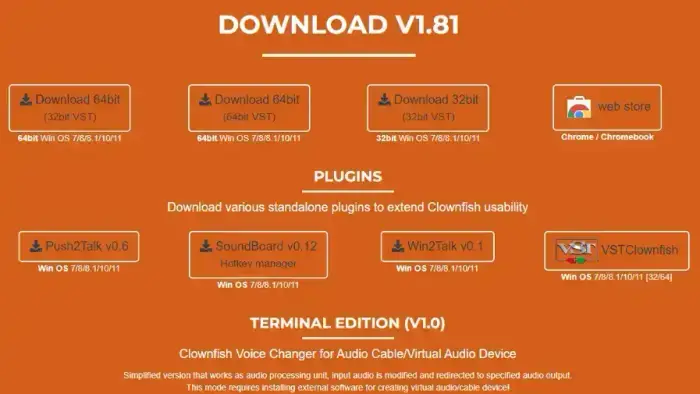
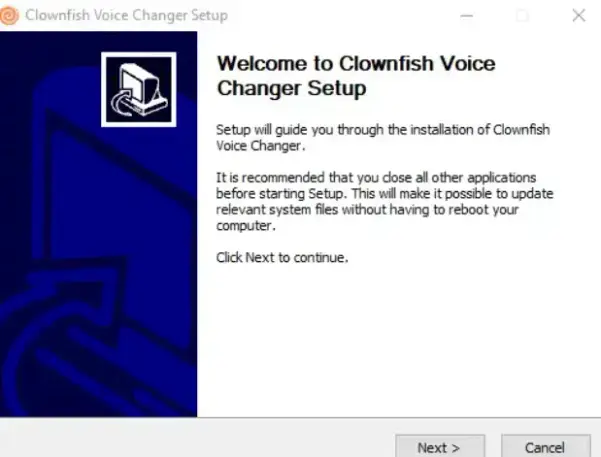
3. Initiate the Installation Process: Once you've downloaded the correct '.exe' installer file, double-click it to begin. The setup wizard will then guide you through the installation steps.

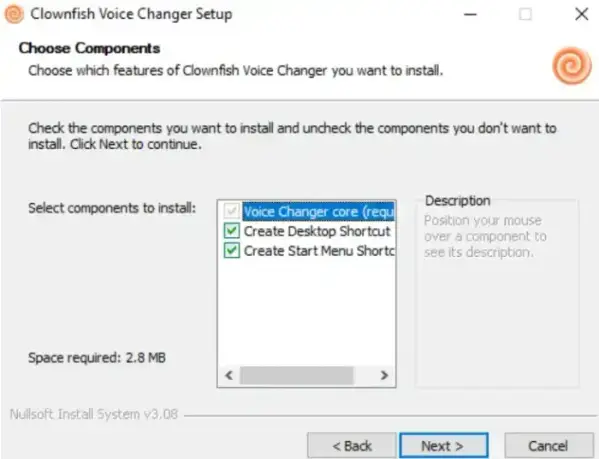
4. Opt for a Complete Installation (Recommended): During the setup, you might be asked about which components to install. For access to all features and voice effects, it's usually best to select the complete or default installation option.
5. Specify Installation Location: The wizard will prompt you to choose an installation directory. Clownfish is a lightweight application (typically requiring only a few megabytes), so it can be installed on any preferred drive or partition.
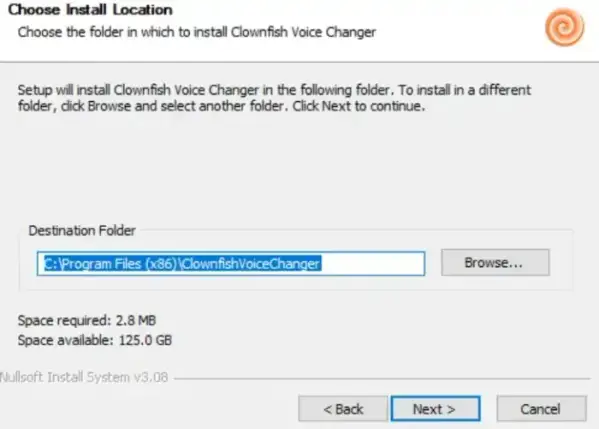
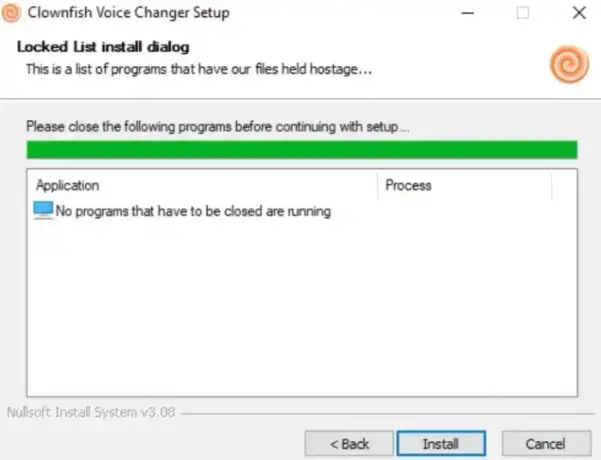
6. Close Interfering Programs (If Prompted): The installer may advise you to close other running applications that could interfere with the setup process. Follow such prompts to ensure a smooth and error-free installation.
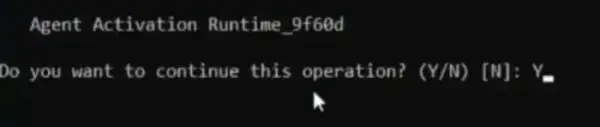
7. Restart Your Audio Service (If Prompted): It's common for a command prompt window to appear during installation, asking for permission to restart your computer's audio service. This is a critical step for Clownfish to integrate with your system's audio. If it doesn't proceed automatically, type “Y” and press “Enter” when prompted.

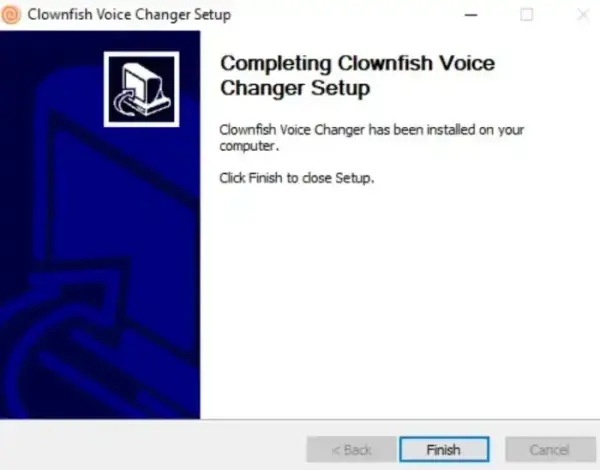
8. Completing the Installation: Follow any remaining prompts in the setup wizard. After the installation is complete, click 'Finish'. It's highly recommended to restart your computer at this point to ensure all components are correctly initialized and integrated with your system.
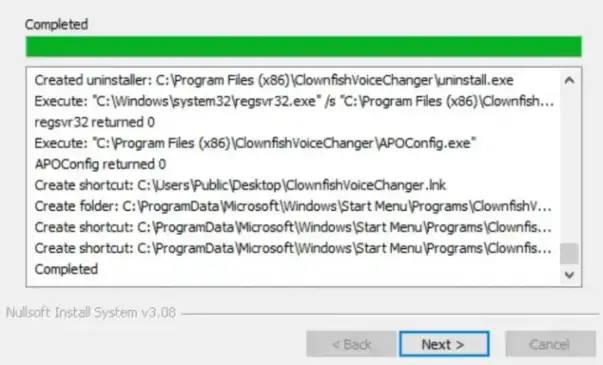
Congratulations! You have successfully installed Clownfish Voice Changer.
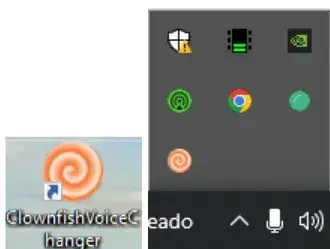
Important Note on Using Clownfish: Unlike many applications, Clownfish Voice Changer doesn't usually open a main program window when you click its desktop icon. Instead, it runs discreetly in the background. You manage and control it via its icon located in the Windows system tray (the area near your clock, usually at the bottom-right of your screen). Right-click this icon to access all its features and settings. This behavior can be confusing for first-time users, so remember to look for it there!
How to Configure Clownfish Correctly: Your Essential Setup Guide
Properly configuring Clownfish Voice Changer, especially your microphone, is the most critical step to ensure it works smoothly and avoids common user frustrations. This Clownfish setup guide will walk you through it carefully.
- Locating Clownfish in System Tray: After installation and a PC restart, find the Clownfish icon in your Windows system tray. You might need to click the small upward-pointing arrow (often labeled "Show hidden icons") to see all active tray icons.
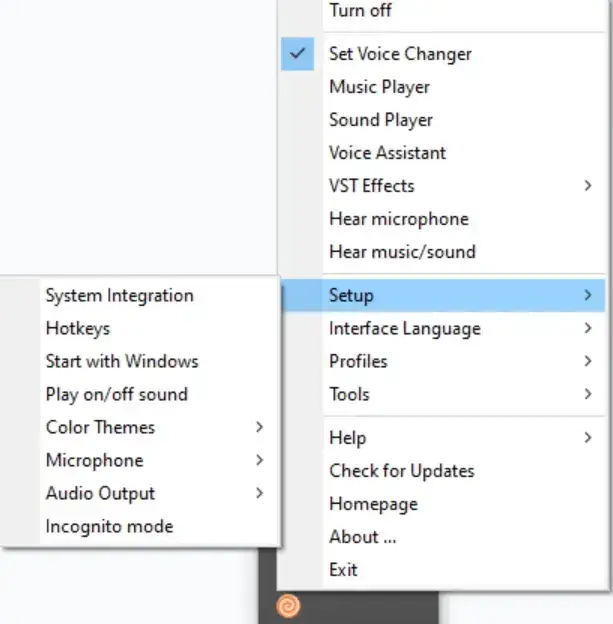
- Opening the Setup Menu: Right-click on the Clownfish tray icon. This will open its main context menu. From this menu, select "Setup," and then click on "System Integration." This is where you'll tell Clownfish which microphone to use.
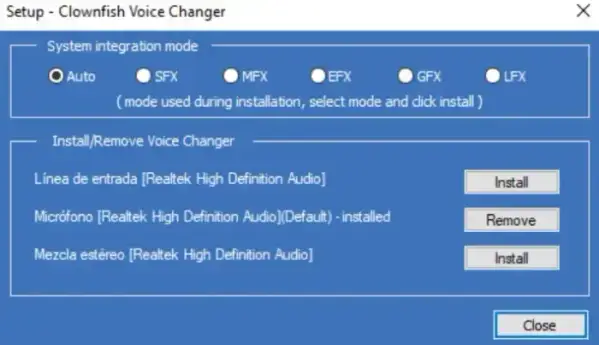
- Choosing and Installing the Correct Microphone: The "System Integration" window will display a list of all microphones detected by your Windows system.
- Clownfish needs to "install" its driver onto your desired microphone to modify its output. The microphone it's currently configured to use might have a status like " (installed - click to remove)" or simply show "-installed" next to its name in the list.
- Crucial Step: If your preferred microphone is not the one selected (or if no microphone appears correctly set up for Clownfish), you may need to first click "Remove" next to any incorrectly assigned microphone. Then, find your primary microphone in the list and click the "Install" button next to it. Only one microphone should be "installed" for Clownfish at a time to avoid conflicts.
- Verify Windows Settings: After this, it's vital to ensure that this same microphone (the one you just "installed" Clownfish onto) is also set as your Default Recording Device in your main Windows Sound settings (usually found via Control Panel > Sound > Recording tab). Any mismatch between Clownfish's target microphone and Windows' default microphone is a very common reason why Clownfish Voice Changer not working issues occur.
- Activating Clownfish & Selecting Voice Effects:
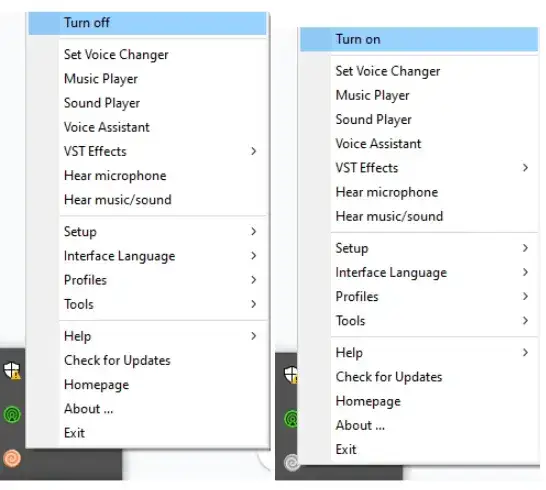
- First, ensure Clownfish is actually turned on. Right-click the tray icon; if the option says "Turn On," click it to activate the software. If it says "Turn Off," then Clownfish is already active and processing audio.
- To choose a voice effect, right-click the tray icon again, and this time select "Set voice changer." A menu will pop up, populated with the various voice effects Clownfish offers (e.g., Alien, Atari, Robot, Male pitch, Female pitch). Simply click on an icon to activate that voice effect instantly.
- To revert to your original, unmodified voice, select the "Clear effect" option from this same menu (it's usually located at the top or bottom of the effects list).
- Testing Your Voice: To hear your modified voice for testing purposes, right-click the Clownfish tray icon and check the "Hear Microphone" option. Your changed voice will play through your speakers/headphones. Remember to uncheck this option during normal use if you experience an echo, especially if you're using speakers or have the "Hear music/sound" option enabled for the soundboard.
- Integration with Other Programs (Discord, Skype, Games, etc.): Once Clownfish Voice Changer is active and correctly configured to modify your default system microphone, other applications (like Discord, Skype, Zoom, OBS, or your online games) should automatically use the voice with the applied effect. However, for best results and to troubleshoot:
- Open the audio/voice settings within the specific application you want to use Clownfish with (e.g., in Discord, go to User Settings > Voice & Video).
- In that application's settings, ensure that the "Input Device" is set to your "Default" system microphone. Since Clownfish modifies the default system microphone at a driver level, this selection should carry over the voice change. In some cases, Clownfish might also create a virtual microphone device (e.g., "Microphone (Clownfish Audio)") in your system's audio devices list; if so, you might try selecting that directly within the application.
 System Integration' menu option" width="600" height="611" />
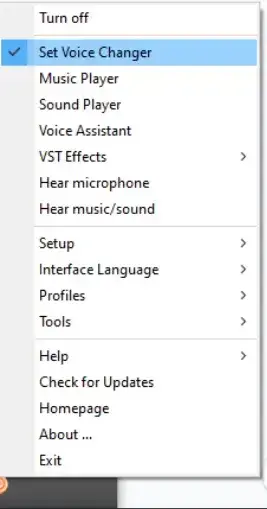
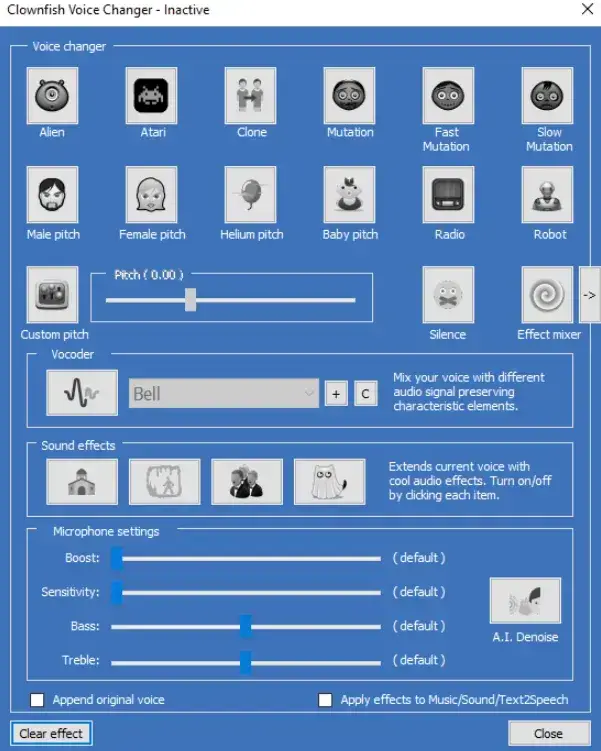
By carefully following these Clownfish setup steps, particularly the microphone configuration, you should have Clownfish Voice Changer working effectively to enhance your online communication and content creation. Remember, a little patience during setup can save a lot of frustration later!
Downloading and Installing Plugins for Clownfish Voice Changer
Enhancing Clownfish Voice Changer with plugins can add significant customization and functionality. This section will guide you through installing plugins, using "Push2Talk" (which allows toggling voice effects with a hotkey) as an example.
Downloading Plugins
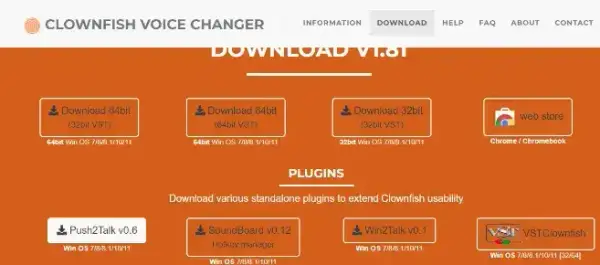
1. Access the Downloads Section: Go to the official Clownfish Voice Changer website. In the 'Download' area, you'll usually find a dedicated section for plugins alongside the main application versions.
2. Select and Download Your Desired Plugin: For this example, we'll use the Push2Talk plugin. Click to download its .zip file. This plugin introduces a push-to-talk feature, enabling voice effects only while a specific key is pressed.

Extracting the Plugin
1. Unzip the Downloaded File: After the download is complete, locate the .zip file and extract its contents into a new folder on your computer. This step is essential for accessing the plugin files needed for installation.

Installing the Plugin
1. Locate the Clownfish Installation Directory: Navigate to where you installed Clownfish Voice Changer. The default path is often `C:\Program Files (x86)\ClownfishVoiceChanger\` or `C:\Program Files\ClownfishVoiceChanger\`. If you chose a custom path during installation, go there instead.


2. Transfer the Plugin Files: Open the folder where you extracted the plugin files. Select the relevant files (often a `.dll` file, like `PushToTalk.dll`, and sometimes other associated files) and drag or copy them into the `Plugins` sub-folder within your Clownfish installation directory. If a `Plugins` folder doesn't exist, you might need to create one, or the specific plugin might need to be placed directly in the main Clownfish directory (always check if the plugin comes with a README or instructions).
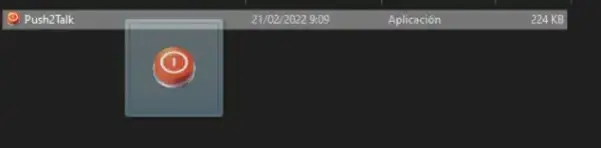
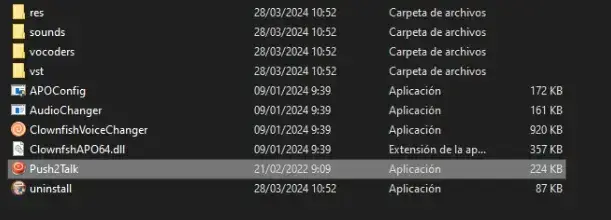
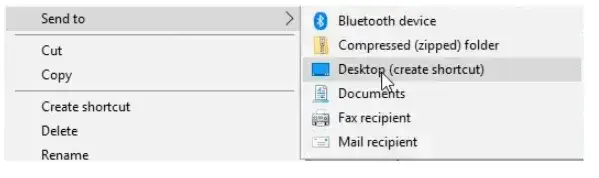
3. Create a Desktop Shortcut (for executable plugins): Some plugins might be standalone executables that work alongside Clownfish (e.g., a separate hotkey manager). If your plugin has an `.exe` file, you can right-click it in the Clownfish directory and select 'Send to > Desktop (create shortcut)' for easier access.
Activating and Using the Plugin
1. Restart Clownfish: To ensure Clownfish recognizes and loads the new plugin, it's usually necessary to restart the application. Right-click on the Clownfish system tray icon, select 'Turn off,' wait a few seconds, then right-click again and select 'Turn on'.
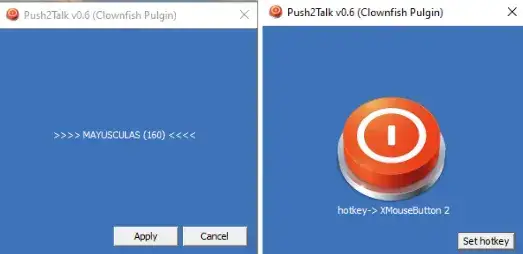
2. Using the Plugin (Push2Talk Example): If the plugin has a separate executable or configuration (like the desktop shortcut for Push2Talk), open it. For Push2Talk, you should see an option to 'Set hotkey'. Click this, press your desired key, and then click 'Apply'. Once configured, pressing and holding this hotkey should activate your selected Clownfish voice effect, and releasing it should deactivate the effect. Other plugins might add new options directly into Clownfish's right-click menu.
For Other Plugins
1. The general process for installing other Clownfish plugins is similar to the steps outlined above. However, always check if a specific plugin comes with its own installation instructions or README file. By downloading, installing, and configuring plugins, you can significantly customize your voice-changing experience to fit your needs.

Clownfish Terminal Edition: Voice Changing via Command Line
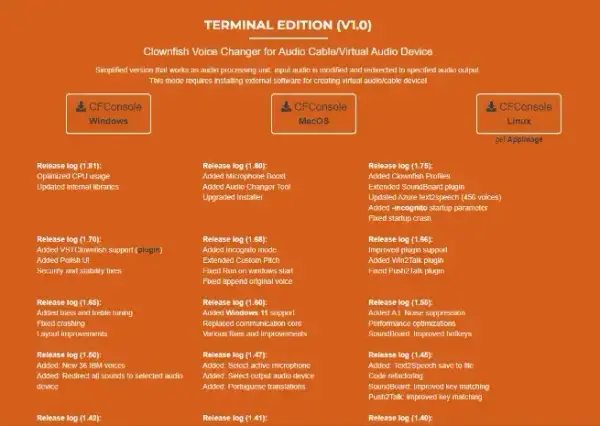
For users who prefer command-line interfaces, or for use on systems like Linux and macOS where the main GUI app isn't supported, Clownfish Voice Changer offers a Terminal Edition. This streamlined version provides core voice modulation from a terminal window.
Accessing Terminal Edition
1. Navigate to the Downloads Section: On the official Clownfish website, go to the 'Downloads' page. Scroll down to find the "Terminal Sound Player & Effect List" or similarly named sections for Windows, Linux, and macOS Terminal Editions.
Downloading and Extracting
1. Choose Your Operating System: Select and download the Terminal Edition .zip file appropriate for your OS (Windows, Linux, or macOS).

2. Download and Unzip: After the download, extract the contents of the .zip file to a folder on your computer.
Launching Terminal Edition
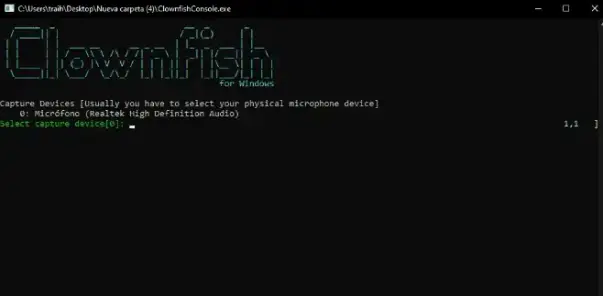
1. Execute the Program: Open your terminal or command prompt, navigate to the extracted folder, and run the Clownfish Terminal Edition executable file (the exact command will vary by OS).

2. Exploring the Interface: A terminal window will open, providing access to Clownfish's features via text commands. This allows for efficient control over voice effects and settings without a graphical interface.
Benefits of the Terminal Edition
The Clownfish Terminal Edition is excellent for users comfortable with command-line tools, those on Linux/macOS, or in environments where GUI applications are not ideal (like servers or remote setups). It provides Clownfish's powerful voice modulation with minimal resource consumption.
Clownfish Voice Changer as a Chrome Extension
For quick, browser-based voice changing without a full software installation, the Clownfish Voice Changer Chrome Extension offers a convenient solution. Developed by Bogdan Sharkov (the same developer as the desktop app), it integrates directly into Google Chrome.
Adding the Clownfish Extension
1. Navigate to the Chrome Web Store: You can find the extension by searching "Clownfish Voice Changer" in the Chrome Web Store, or by using this direct link: Clownfish Voice Changer on Chrome Web Store. (The official developer is Bogdan Sharkov, and their website clownfish-translator.com is associated with it).
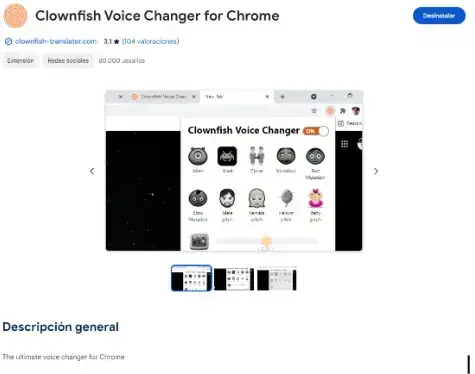
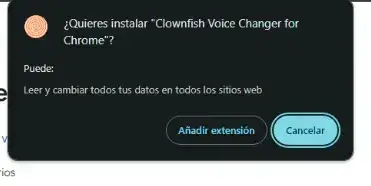
2. Install the Extension: Click the "Add to Chrome" button on the extension's page. Review and accept any permissions the extension requires to function.
Activating and Using the Extension
1. Accessing the Extension: Once installed, its icon appears in your Chrome toolbar (you might need to click the puzzle piece icon representing extensions and then "pin" Clownfish to the toolbar for easy access).
2. Configuring Clownfish: Click the Clownfish extension icon to open its configuration menu. From here, you can select various voice-changing options (Alien, Atari, Clone, Mutation, Male pitch, Baby, Helium, Custom pitch were listed as available as of late 2023) and adjust settings. These effects will apply to web applications using your microphone input within Chrome.

3. Enjoy Clownfish in Your Browser: With the extension active, your voice will be modified in real-time for web-based communication platforms, online games played in Chrome, and other web services that use your microphone.
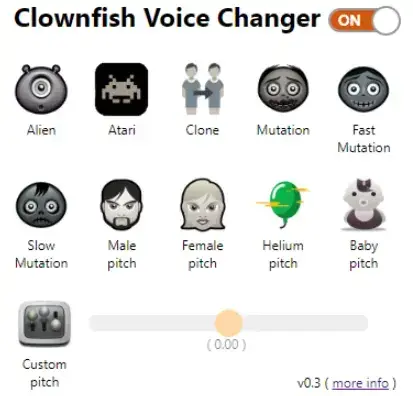
Advantages of the Clownfish Chrome Extension
The Clownfish Chrome Extension provides a lightweight, browser-integrated alternative for users who primarily need voice effects for web apps. It saves system resources compared to the desktop app. However, user reviews for the extension have been mixed (around 2.9/5 stars as of late 2023), suggesting it might have more limitations or occasional issues than the more established desktop version. Always ensure it's from the official developer, Bogdan Sharkov.
Common Issues & Troubleshooting for Clownfish Voice Changer
While Clownfish Voice Changer is a popular free tool, users sometimes encounter issues. Here’s a rundown of common problems and potential troubleshooting steps, drawing from user experiences and the detailed review document:
- Microphone Not Working or Detected: This is the most frequent complaint.
- Solution: This is often a Clownfish setup problem.
- Crucial: Ensure Clownfish is "installed" on the correct microphone in its "System Integration" settings (right-click tray icon > Setup > System Integration).
- Equally Crucial: Verify that the same microphone is set as your Default Recording Device in Windows Sound settings. Mismatches here are the primary cause of issues.
- Restart Clownfish (Turn Off, then Turn On from tray menu) and then restart your PC. A full PC restart after initial setup or changes is often necessary.
- For USB microphones specifically, try unplugging the mic, restarting Clownfish, and then plugging the mic back in.
- Make sure no other application has exclusive control over your microphone (check Windows Sound settings > Advanced for the microphone).
- Solution: This is often a Clownfish setup problem.
- Low Microphone Volume After Installing Clownfish:
- Solution: Check your microphone levels in Windows Sound settings (Recording tab > select mic > Properties > Levels). Also, check audio levels within the specific application you're using (e.g., Discord's input volume). Adjust Clownfish's "Microphone Sensitivity" slider in its main effects menu (right-click tray icon > Set voice changer > Microphone Sensitivity), but avoid setting it too high, as this also controls its noise gate and can cut off your voice if set aggressively.
- Poor, Glitchy, Robotic, or Metallic Audio Quality:
- Solution: Audio quality can be system-dependent. Ensure your PC meets recommended system specifications (an Intel Core i3 processor and 4GB RAM are a more realistic baseline for smoother operation than absolute minimums). Try different built-in voice effects, as some are inherently more processed-sounding than others. Experiment with the "Append Original Voice" option (right-click tray icon > Options > Append Original Voice) as it might improve clarity for some effects. For higher quality and more control, exploring VST plugin voice changer capabilities within Clownfish can offer more professional results, assuming you are technically adept at configuring VSTs.
- Echo or Hearing Your Own Voice:
- Solution: If you have "Hear Microphone" checked in Clownfish's tray menu (right-click icon > Hear Microphone), uncheck it. This option is primarily for testing and will cause an echo if your speakers are on or if you're also using the "Hear music/sound" option for the soundboard.
- Conflicts with Other Audio Software:
- Solution: It's strongly recommended to uninstall any other voice changing software or system-level audio modification tools before installing and using Clownfish, as they can conflict. If issues persist after doing so, a clean reinstall of Clownfish (uninstall, restart PC, then reinstall) might be necessary.
- Application Instability or System Audio Bugs:
- Solution: Ensure you have downloaded the latest version of Clownfish from the official clownfishvoicechanger.net website. An outdated user interface and a noted lack of frequent updates for Clownfish can sometimes lead to compatibility issues with newer OS versions, drivers, or other software. Ensure your system meets reasonable performance specifications and that all your audio drivers are up to date from your hardware manufacturer.
Troubleshooting Clownfish Voice Changer not working often requires patience and a systematic approach to checking settings in Clownfish itself, your Windows Sound settings, and within the target application (like Discord or your game).
Clownfish Voice Changer: Pros & Cons Summary
To help you decide if this free voice changer is the right fit for your needs, here’s a quick overview of its main advantages and disadvantages based on extensive reviews and user feedback:
| Pros | Cons |
|---|---|
| Completely Free: Its biggest advantage. The full feature set is available at no cost, reportedly for both personal and commercial use. | Windows-Only (Main Desktop App): The primary application is exclusive to Windows, limiting options for macOS/Linux users seeking a full GUI experience. |
| Versatile Feature Set: Offers a good range of built-in voice effects, plus Text-to-Speech, a soundboard, and a music player. | Frequent Microphone & Audio Driver Issues: A high number of users report significant problems with microphone detection, setup, driver conflicts, and general audio disruptions. |
| Powerful VST Plugin Support: This is a standout feature for a free tool, allowing advanced users to integrate professional third-party audio effects for extensive customization. | Inconsistent User Experience & Stability: Performance, audio quality, and software stability can vary greatly depending on the user's specific system configuration, technical skill, and even luck. |
| System-Wide Application: Once correctly configured, it modifies your microphone input for all applications on Windows that use a mic. | Dated User Interface (UI): The UI is considered outdated by many users, and its system-tray-based operation can be unintuitive for those new to the software. |
| Lightweight (Often): If configured properly on a decent system, it can be relatively light on system resources (CPU/RAM). | Lack of Frequent Updates: Infrequent software updates may lead to lingering bugs, security vulnerabilities, and worsening compatibility issues over time with newer operating systems or other applications. |
| Active Unofficial Community: Many online forums and community guides (like on Reddit or YouTube) where users share solutions and tips for common problems. | Privacy Concerns: There is conflicting information regarding data logging practices. While some official statements claim no personal data collection, other reviews suggest that IP addresses and voice session metadata might be collected. Users should proceed with caution. |
Is Clownfish Voice Changer Right for You? Our 2025 Verdict
Clownfish Voice Changer has maintained its popularity in the crowded field of voice modulation software for years, primarily because it offers a substantial suite of features entirely free of charge. It’s a very tempting option, especially for those new to the world of voice changing or for users operating on a strict budget.
Clownfish Voice Changer is likely a good choice in 2025 if you are:
- A casual user simply looking for a free and fun way to experiment with various voice effects for occasional use in online games with friends, informal voice chats, or just for entertainment.
- Strictly budget-conscious and absolutely need basic to intermediate voice changing capabilities without any financial outlay. This is its main selling point.
- A technically inclined user, a "tinkerer," or someone who doesn't mind (and is perhaps even comfortable with) troubleshooting potential technical issues, driver conflicts, and investing time in configuring the software meticulously to work with your specific system.
- A content creator on a very tight budget who can leverage its free features, especially the valuable VST plugin support, to enhance audio content, provided you can achieve a stable and reliable setup through careful configuration.
However, Clownfish Voice Changer might NOT be your ideal solution if you:
- Require guaranteed stability and flawless, artifact-free audio performance, especially for professional work, critical communications, or serious streaming where reliability is non-negotiable.
- Need pristine, high-quality audio output without the need for extensive tweaking, troubleshooting, or diving into the complexities of third-party VST plugins.
- Are looking for extensive, straightforward, and officially supported cross-platform functionality for a full desktop GUI application (beyond Windows).
- Are highly sensitive to any potential form of data logging or require absolute transparency and modern standards regarding software privacy practices.
- Prefer a very polished, modern user interface and a "plug-and-play" experience with minimal setup complexity and readily available official support.
- Are not comfortable with potentially complex microphone setup procedures or the possibility of needing to resolve software and audio driver conflicts on your own.
Concluding Thoughts on This Enduring Free Voice Changer
Clownfish Voice Changer has undeniably carved out and maintained an enduring niche in the digital soundscape, almost entirely due to its generous free offering. For many users, particularly those just entering the world of voice modulation or those with casual or experimental needs, its "good enough" functionality combined with the unbeatable price tag of zero makes it a highly attractive proposition. The inclusion of advanced features like VST plugin support also provides a surprising depth that can satisfy more technically proficient users who are willing to navigate its inherent intricacies.
However, the software is not without its significant quirks and potential frustrations. The path to a smooth, operational experience can sometimes be paved with microphone compatibility headaches, perplexing audio glitches, and a setup process that often proves more complex and less intuitive than it first appears. The old adage "you get what you pay for" applies to some extent here; the absence of a price tag is often balanced by the potential need for significant user-led troubleshooting and a generally less polished overall experience compared to many well-supported paid alternatives. Its longevity is a testament to the genuine value that a dedicated user base finds in its free and feature-rich offering, but its future relevance may be increasingly challenged by the rise of more sophisticated, often AI-driven, voice changers that promise greater realism and superior ease of use, albeit typically at a premium cost. **Clownfish Voice Changer** remains a relevant and useful tool in 2025, especially for the resourceful and patient user – the "tinkerer" who is willing to invest their time and effort to harness a powerful, free utility, skillfully navigating its flaws to unlock its unique potential.
Frequently Asked Questions (FAQ) - Clownfish Voice Changer (2025 Update)
- Is Clownfish Voice Changer still completely free in 2025?
- Yes, as of early 2025, the main Clownfish Voice Changer desktop application for Windows is widely reported and understood to be completely free to download and use. There are no official paid tiers or premium versions for its core functionality, despite occasional confusing claims from non-official sources.
- What is the official and safe website to download Clownfish Voice Changer?
- The primary official website for downloading the Windows desktop version of Clownfish Voice Changer is clownfishvoicechanger.net. It is crucial to download from this official source to avoid malware or unwanted bundled software often found on third-party download sites.
- Does Clownfish Voice Changer work on Mac or Linux systems?
- The main graphical user interface (GUI) desktop application of Clownfish Voice Changer is Windows-exclusive. However, for users on other platforms, there is a Clownfish Terminal Edition available for Linux and macOS (which requires command-line usage) and a Clownfish Chrome Extension that can work on any operating system that supports the Google Chrome browser (like macOS, Linux, ChromeOS).
- Why is my microphone not working with Clownfish Voice Changer? This is a common problem!
- This is indeed one of the most frequently reported issues with Clownfish. It usually stems from incorrect setup or conflicts. Key solutions include: 1) Ensuring your microphone is correctly selected and "installed" within Clownfish's "System Integration" settings (accessed by right-clicking the tray icon > Setup > System Integration). 2) Critically, making sure that this same microphone is set as your Default Recording Device in your main Windows Sound settings. 3) Restarting Clownfish and your PC after any changes. Refer to the detailed configuration steps in this guide for more help troubleshooting "Clownfish not working" errors.
- Can Clownfish Voice Changer damage my microphone or audio drivers?
- While Clownfish itself, if downloaded from the official site, is not malware and is highly unlikely to physically "damage" your hardware, some users have reported software conflicts that can disrupt audio functionality or make it seem like audio drivers are "corrupted." These are typically software-level issues that require troubleshooting, such as reconfiguring settings, reinstalling audio drivers from your PC manufacturer, or cleanly reinstalling Clownfish, rather than permanent hardware damage.
- Is Clownfish Voice Changer safe to use in 2025 regarding viruses and privacy?
- If downloaded from the official website (clownfishvoicechanger.net), the software itself is generally considered free of malware or viruses. However, "safety" also encompasses system stability and data privacy. Some users continue to report system audio issues. Regarding privacy, there remains conflicting information; while some official FAQs might claim no personal data collection, other more detailed reviews (referenced in the source document) suggest that some data like IP addresses and voice session metadata might be logged by the desktop application. Users should exercise caution, ensure their system security software is active, and be mindful of software permissions and terms of service.
- How do I turn Clownfish Voice Changer off or on, or simply stop the voice effects?
- You control Clownfish entirely via its icon in the Windows system tray (bottom-right of your screen). Right-click the icon:
- To activate or deactivate the entire application: Select "Turn On" (if it's currently off) or "Turn Off" (if it's currently on).
- To stop a specific voice effect and return to your normal voice (while leaving Clownfish active for other features like the soundboard): Select "Set voice changer" from the menu, then click the "Clear effect" option (usually found at the top or bottom of the list of voice effects).
- What are VST plugins, and how does Clownfish Voice Changer support them?
- VST (Virtual Studio Technology) plugins are third-party audio effects or virtual instruments that can be loaded into compatible host applications (like Digital Audio Workstations or, in this case, Clownfish). Clownfish Voice Changer's support for VST plugins is a significant and somewhat unique feature for free voice changing software. It allows users to go far beyond the built-in effects by using potentially thousands of free or commercial VST effects for highly customized and often professional-sounding voice modulation. To use them, you would typically download VST plugin files (usually `.dll` files on Windows), place them into Clownfish's designated VST plugin folder (which you might need to configure in Clownfish's settings), and then access/activate them from within Clownfish's VST effects menu.
Clownfish Voice Changer, despite its quirks, an outdated interface, and a sometimes challenging setup, remains a remarkable piece of freeware in 2025. It offers a depth of functionality—from its wide array of basic voice effects to its powerful VST plugin support—that keeps it relevant for a broad audience, especially those unwilling or unable to pay for premium voice changing software. By understanding its capabilities, limitations, and the critical importance of proper configuration as detailed in this comprehensive guide and tutorial, users can effectively harness this unique tool to enhance their digital communication and creative audio projects.